
Project Management
Build boards that match how your team works.
Add and reorder sections freely. Move AI suggestions and team ideas on the same board with drag and drop.
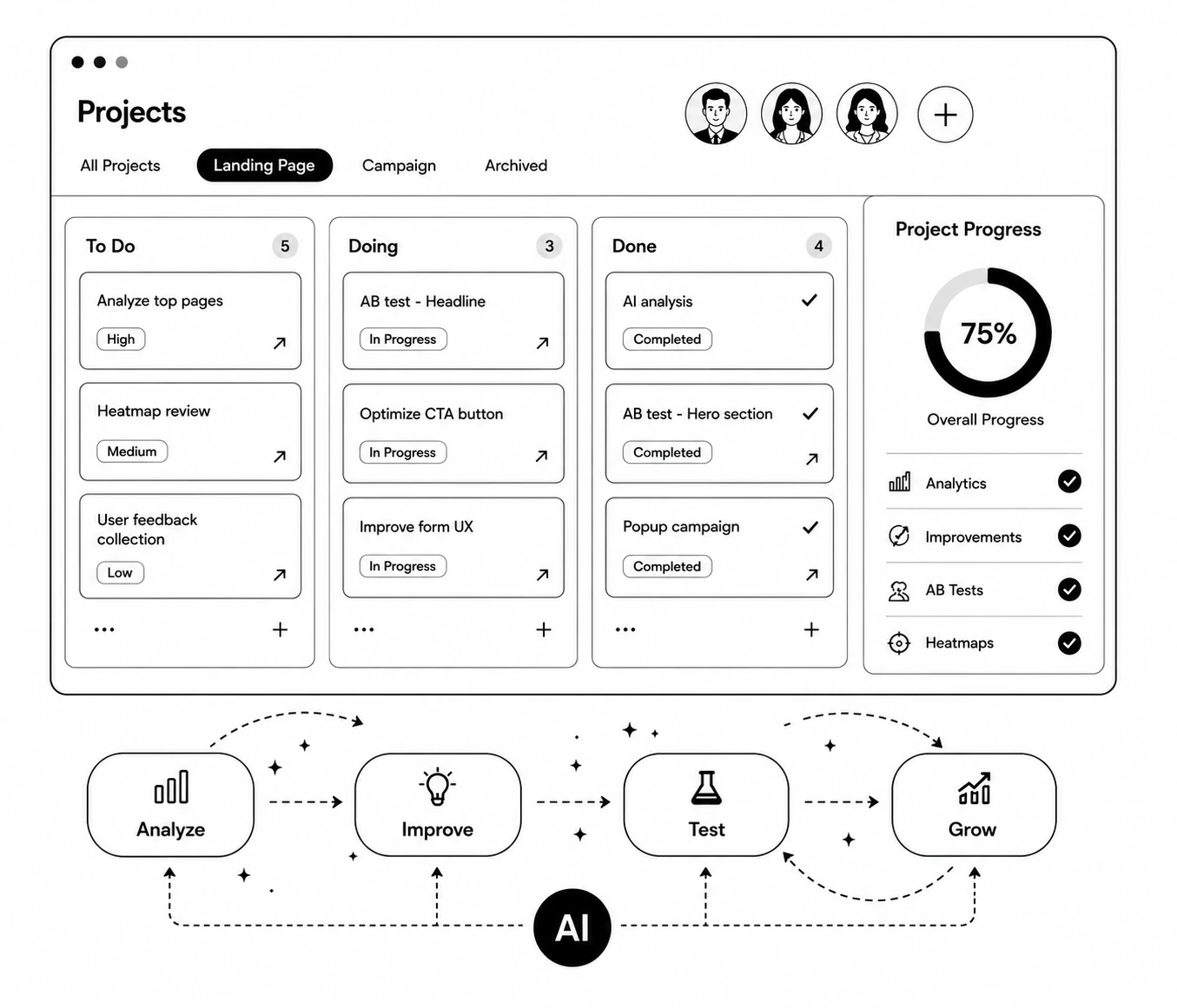
Sections that fit your workflow.
Use "+ Create Section" to add as many named columns as you need
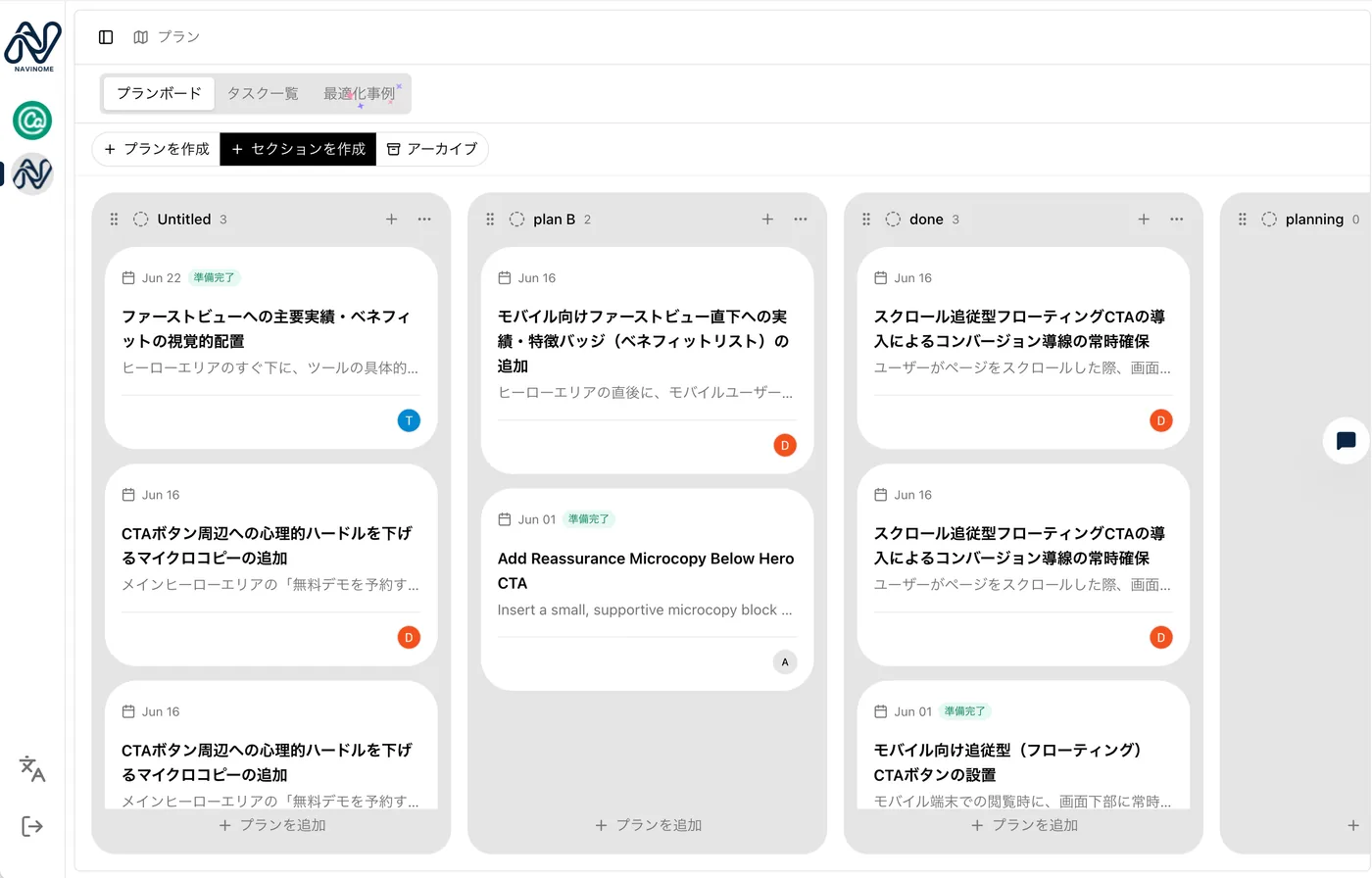
Cards move freely between sections with drag and drop
Find what to improve from real cases.
Filter by industry and category, then add to your board with "Create plan"
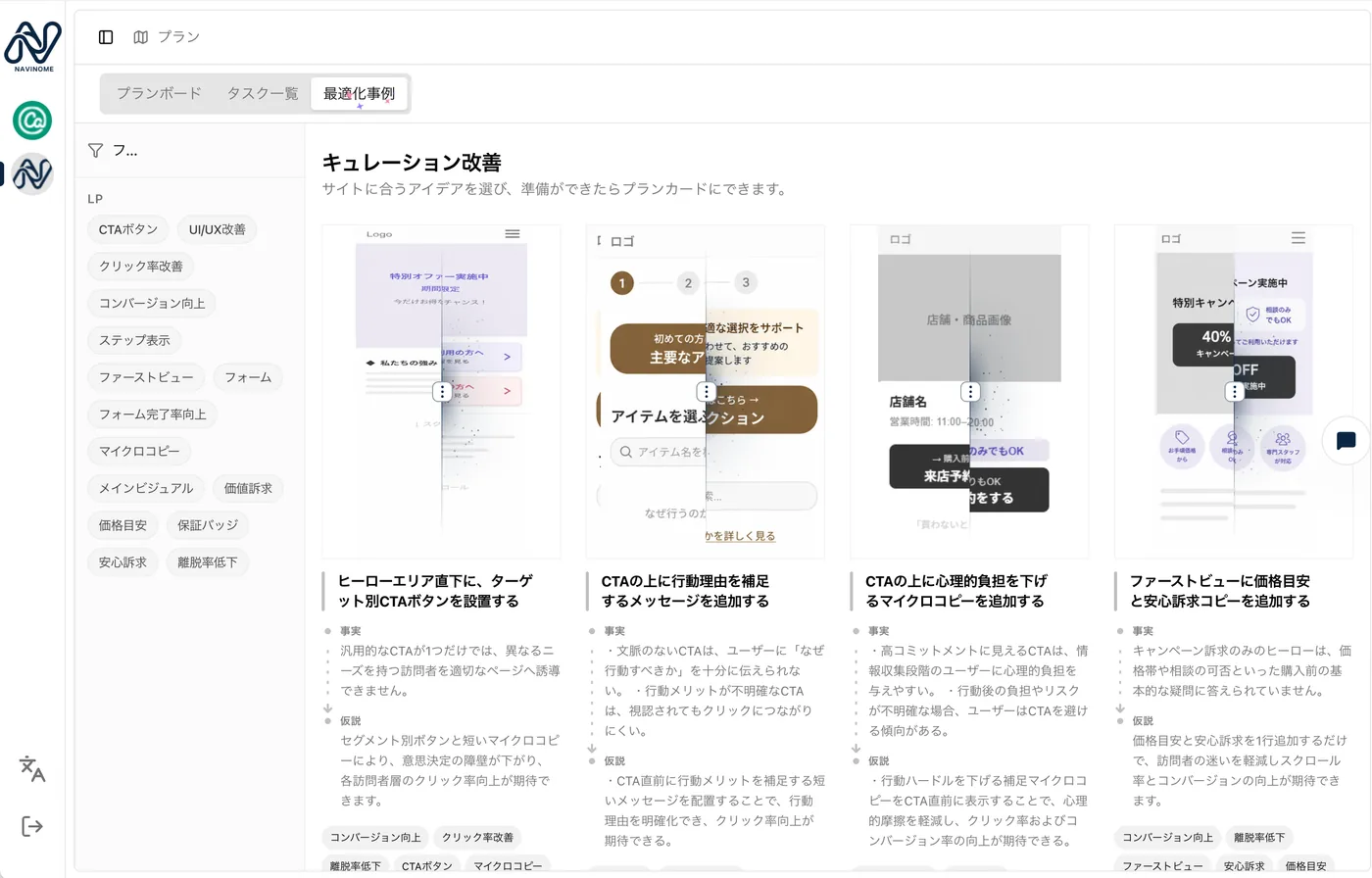
Browse an optimization case library to find examples close to your business. Add any case to your plan board in one click.
Open a card and see the full rationale.
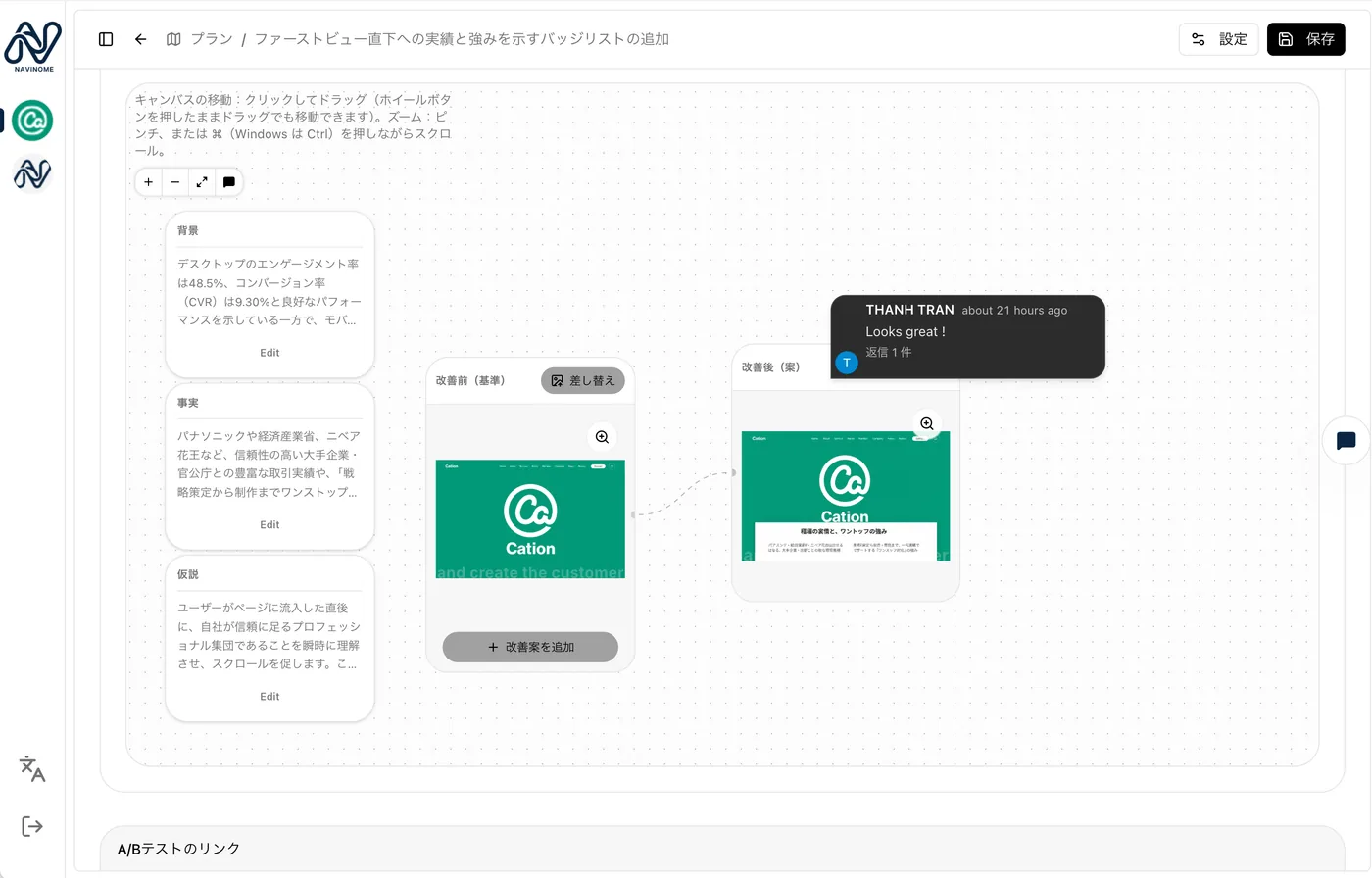
Facts, hypotheses, before-and-after visuals, and team comments live on the same card so you can discuss with full context.
From plan to A/B test in one flow.
Finalize the plan card
Compare before-and-after images and align with your team in comments.
Click "Start A/B from this card"
Once the team agrees, one button on the card takes you to A/B test setup.
Validate with the plan linked
The A/B test stays linked to the plan card, so you can review results from the same place.
Related articles
Learn more about project management and team workflows


Frequently asked questions
Can we name and add sections freely?
Yes. Create and rename sections like "Proposed" or "Ready to run" to match how your team works.
How many steps does it take to start an A/B test from a plan?
Open the plan card and click "Start A/B from this card." The A/B test setup opens with the plan content already carried over.
Can we add plans manually, not only from AI?
Yes. Use "+ Create Plan" to add initiatives your team comes up with at any time.
What if we do not have improvement ideas yet?
Use the optimization case library to filter by industry and category. Add any case you like straight to the plan board.
Shape the board to how your team works.
Book a free demo to see the plan board in action.